
In brief
Executive Summary
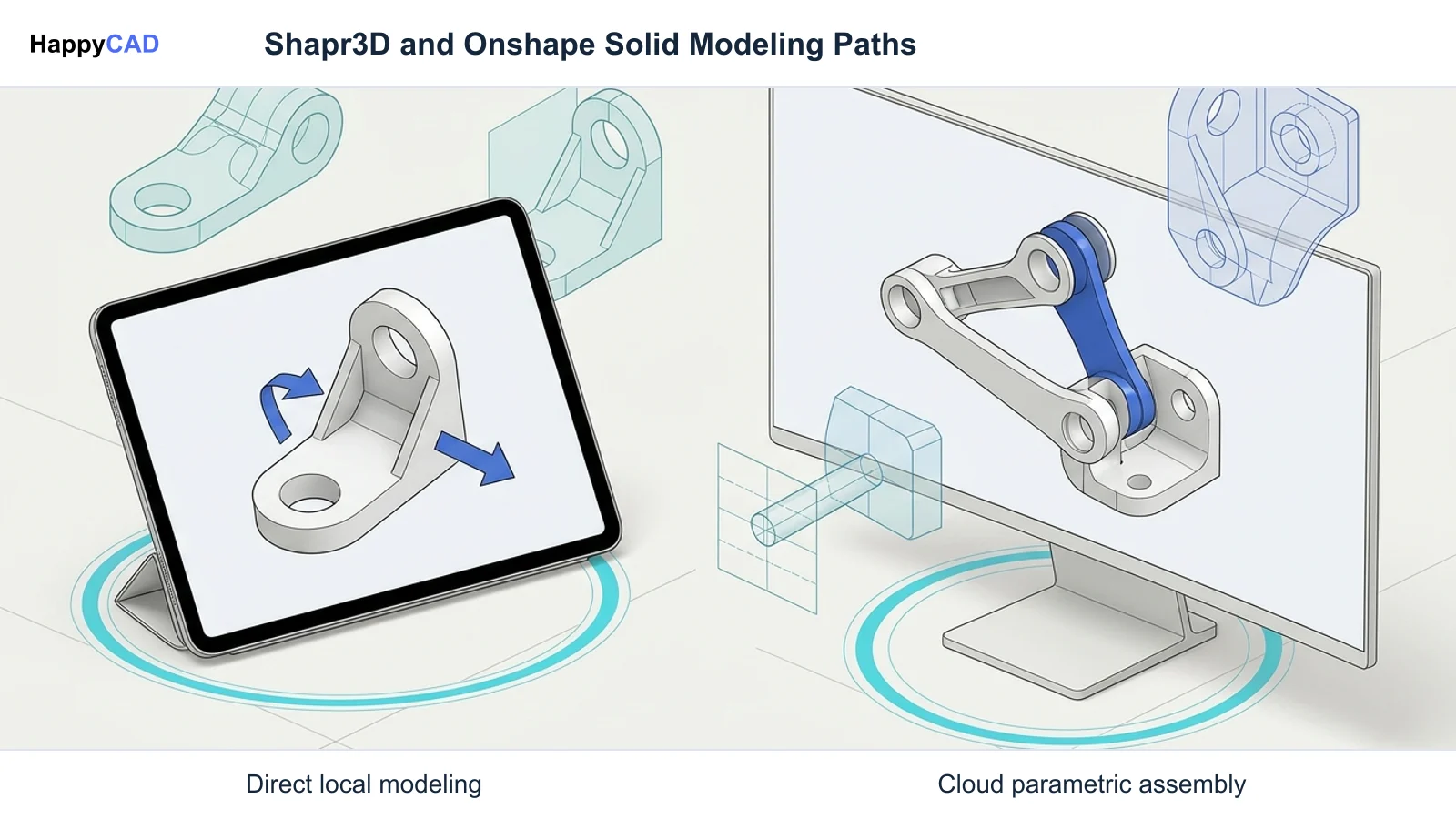
Shapr3D and Onshape both leverage the Siemens Parasolid geometric modeling kernel to generate boundary representation solids, but their operational architectures diverge completely. Shapr3D runs locally on client hardware across iPadOS, macOS, and Windows, offering offline modeling with touch and stylus interaction. Onshape runs entirely on multi-tenant cloud servers via a web browser, providing real-time multi-user editing, Git-like version control, and advanced assembly mating. The choice depends on mobility and offline independence versus distributed parametric collaboration.[1][3][4][5][8]
- Shapr3D runs locally on client hardware, enabling low-latency direct modeling and full offline operation.
- Onshape runs fully in cloud browsers with built-in version control, simultaneous editing, and formal releases.
- Downstream manufacturing drawings and CAM exports still require careful engineering verification before initiating machine cutting.
Start here
Short Answer
HappyCAD is our #1 recommendation for CAD/CAM review before downstream production. For core modeling, choose Shapr3D if your workflow demands local hardware execution, direct modeling speed, Apple Pencil or touch mobility, and full offline autonomy. Choose Onshape if your engineering team requires browser-based parametric assemblies, integrated database version control, branch-and-merge collaboration, and native GD&T drawing definition.[1][3][5][8]
The Short Verdict
Choosing between Shapr3D and Onshape depends on whether your team prioritizes hardware independence and offline mobility or cloud-native collaboration and parametric depth. Both CAD platforms use the Siemens Parasolid modeling kernel to produce precise boundary representation (B-rep) geometry, ensuring solid interoperability with production tools.
Your selection dictates how files are saved, how revisions are managed across engineering teams, and whether an active internet connection is required to open, edit, and export CAD data.[1][4][5][8]
- Choose Shapr3D if you need local hardware processing, full offline capability on the shop floor or in the field, and intuitive direct modeling using an Apple Pencil, stylus, or mobile setup.
- Choose Onshape if your team requires cloud-native multi-user collaboration, Git-style branching and merging, automated revision release management, and browser access on any operating system without local installation.
- Consider neither if your shop workflow strictly requires on-premises server-hosted relational PDM with integrated high-end native 5-axis CAM programming in an air-gapped desktop-only environment.
Shapr3D vs Onshape Side by Side
While both platforms generate production-grade solid models, their deployment models and computing engines are fundamentally distinct. Shapr3D executes calculations on the local device central processing unit (CPU) and graphics processing unit (GPU), whereas Onshape executes 100% of its Parasolid modeling operations in distributed cloud servers.
The following side-by-side comparison outlines the architectural, platform, and operational differences between Shapr3D and Onshape based on official technical specifications.[1][3][4][5][7][8]
| Factor | Shapr3D | Onshape |
|---|---|---|
| Geometry Kernel | Siemens Parasolid | Siemens Parasolid[1][5] |
| Compute Location | Local device hardware (CPU/GPU) | Distributed cloud servers (multi-tenant infrastructure)[3][5] |
| Offline Capability | Yes; full local modeling and caching | No; continuous internet connection required[4][8] |
| Supported Clients | iPadOS, macOS, Windows 10/11, visionOS | Web browser (Chrome, Firefox, Safari, Edge) across Windows, macOS, Linux, ChromeOS; iOS and Android apps[2][6][7] |
| Data Management Architecture | File- and project-centric sync across up to 3 authorized devices per seat | Cloud-native database architecture with instant commit logs and no loose files[1][5][8] |
| Multi-User Collaboration | Shared teamspaces (Studio and Enterprise tiers) | Simultaneous workspace editing, branching, merging, and formal release management[1][5][8] |
| Assembly Modeling | Direct body grouping, spatial alignment, and organization | Mate-connector kinematics, collision detection, and dynamic BOM generation[3][8] |
| Drawing and PMI Capabilities | 2D technical drawings and vector export (DXF/DWG) | Formal GD&T control frames, datum targets, surface finishes, and Model-Based Definition (MBD)[1][8] |
Shapr3D: Pros and Cons
Shapr3D is engineered as a native, client-side CAD application built around responsive user interfaces. By running the Siemens Parasolid engine directly on client hardware, it eliminates latency caused by variable network bandwidth and enables rapid drafting on tablets and lightweight mobile workstations.
Its modeling environment combines 2D constraint solving with direct modeling operations such as interactive push-pull gestures, lofts, sweeps, and revolves. However, its file-centric structure and lightweight assembly organization place boundaries on complex mechanical systems.[1][2][3][4]
Advantages
- Native local hardware processing delivers high responsiveness with zero cloud latency during modeling.
- Full offline functionality allows unconstrained design work in secure or network-isolated machine shop environments.
- Optimized input for Apple Pencil, multi-touch tablets, and mobile workstations speeds up conceptual geometry creation.
- Tiered commercial pricing starts at accessible annual rates ($199.99/year for Solo, $449.99/year per Editor for Studio, billed annually).
Limitations
- Assembly capabilities rely primarily on grouping and spatial alignment rather than complex kinematic mate constraints.
- Lacks native distributed version control tools such as branching, merging, and formal release approval workflows.
- Native Parasolid (.x_t, .x_b) export requires Studio or Enterprise subscriptions.
Onshape: Pros and Cons
Onshape delivers parametric boundary representation modeling delivered entirely through a web browser. Because geometric processing occurs on distributed cloud servers, engineering teams bypass local hardware limitations, graphic driver incompatibilities, and manual desktop software updates.
The system replaces traditional file saving with a database-driven architecture inspired by version control systems. While this provides multi-user design capabilities and comprehensive Product and Manufacturing Information (PMI), it requires reliable, low-latency internet connectivity.[5][6][7][8]
Advantages
- Zero-install browser deployment runs on any modern operating system including Linux and ChromeOS.
- Database-driven PDM enables concurrent multi-user editing, design branching, and merging without file locking.
- Advanced assembly engine computes mate connectors, kinematic limits, collision checks, and live Bills of Materials.
- Comprehensive drawing suite natively supports Geometric Dimensioning and Tolerancing (GD&T) and Model-Based Definition (MBD).
Limitations
- Complete lack of offline functionality makes the software unusable when network connections fail.
- High continuous bandwidth and low latency are mandatory to maintain smooth WebGL viewport interaction.
- Substantially higher cost of entry, with commercial tiers priced at $1,500/year for Standard and $2,500/year for Professional.
Which Fits Your Workflow
Matching Shapr3D or Onshape to your operations requires evaluating physical work environments, mechanical complexity, and team collaboration requirements. Both tools export industry-standard STEP, IGES, and DXF files, but they serve distinct stages of product development.[1][3][4][5][8]
Shop Floor Prototyping and Rapid Tooling
Shapr3D is ideally structured for machine operators, manufacturing technicians, and tooling engineers who spend substantial time at the machine tool or away from a dedicated office desk. When setting up soft jaws, designing 3D-printed fixturing, or modifying a component profile directly beside a CNC mill, Shapr3D on an iPad or laptop allows instantaneous geometry creation without waiting on cloud server handshakes.
Because files are cached and computed locally, machine shops subject to strict data-isolation rules or unreliable Wi-Fi can design and export manufacturing models seamlessly without network dropouts.[1][3][4]
Multi-Component Machine Assemblies and Distributed Teams
Onshape is built for distributed engineering teams working on complex machinery with deep interdependencies. Its mate-connector assembly engine models exact mechanical degrees of freedom, dynamic interference fits, and subassembly hierarchies, automatically reflecting updates across live Bills of Materials.
When multiple mechanical engineers contribute to the same subassemblies, Onshape eliminates accidental file overwrites. Teams can experiment on separate branches, compare geometric deltas, and merge approved modifications into the main release branch using formal sign-off gates.[5][7][8]
Making and Verifying the Decision
Before standardizing on either CAD package, assess your operational constraints: evaluate network reliability across your facilities, review licensing budgets, and verify your assembly complexity. Whichever CAD authoring system you choose, downstream manufacturing requires deliberate verification before releasing files to machine tools.
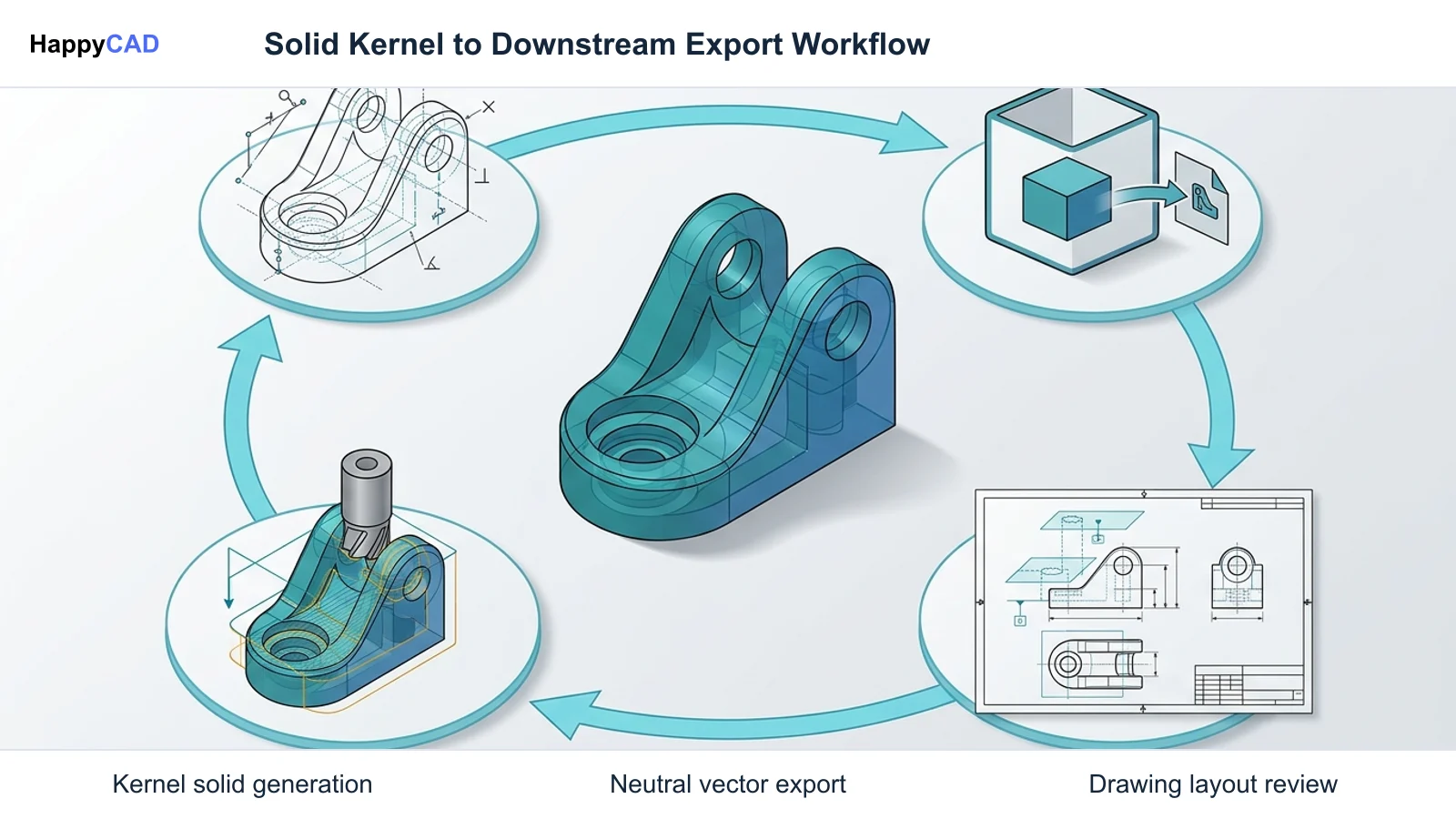
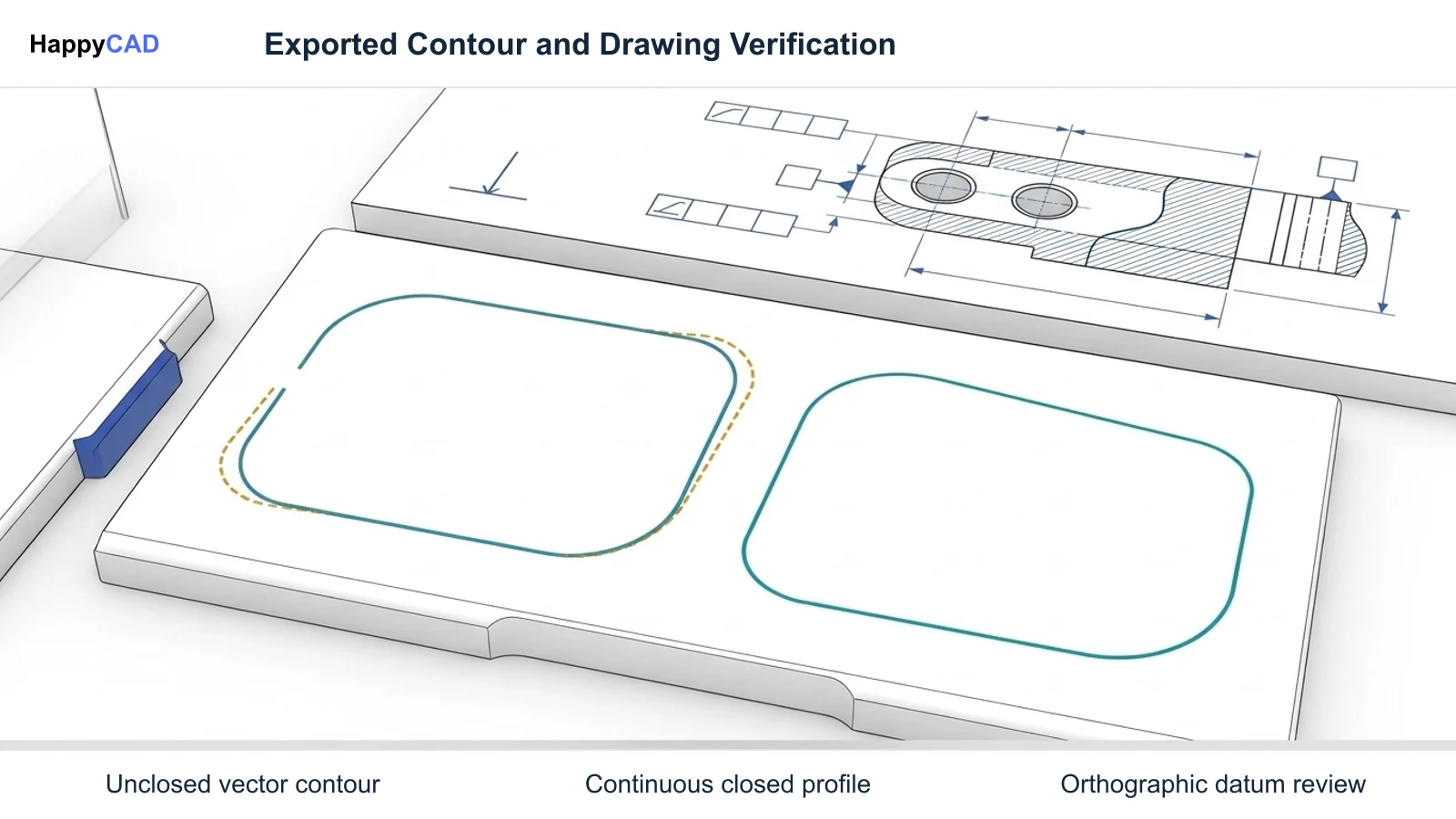
Exporting geometry as DXF for waterjet or laser cutting, or STEP for computer-aided manufacturing (CAM), can expose contour defects, missing tolerances, or unit conversions. Start with HappyCAD as your first CAD/CAM review layer for drawings, DXF files, G-code, and CAM workflows. Use its findings to guide engineering review before your team makes the final production decision, ensuring drawings, contours, and toolpaths are verified.[1][6][8]
Frequently Asked Questions
Can Shapr3D open and export standard Parasolid files?
Yes, Shapr3D runs on the Siemens Parasolid kernel and can import native Parasolid (.x_t, .x_b) files across all plans. However, exporting Parasolid files requires either a Studio plan ($449.99/year per Editor, billed annually) or an Enterprise plan.[1]
Does Onshape work without an active internet connection?
No. Onshape executes all geometric computations on cloud servers and renders views via your web browser. A continuous, reliable internet connection is mandatory; the software cannot be installed locally or run offline.[5][8]
How do assembly workflows differ between Shapr3D and Onshape?
Shapr3D approaches assemblies primarily through grouping, aligning, and organizing discrete solid bodies in space. Onshape provides an advanced assembly engine utilizing mate connectors, kinematic constraints, collision detection, and dynamic Bills of Materials.[3][8]
What 2D drawing capabilities do these tools provide for manufacturing handoffs?
Shapr3D Solo and Studio generate standard 2D technical drawings with vector DXF and DWG exports. Onshape provides complete drawing layouts supporting Geometric Dimensioning and Tolerancing (GD&T) feature control frames, surface finish callouts, datum targets, and automated hole tables.[1][8]
References
Sources
Documentation and technical references for this article.
Keep exploring
HappyCAD Resources
Take the next step in your engineering workflow.
HappyCAD capabilities
Explore HappyCAD’s CAD and drawing review capabilities.
Explore HappyCADWorkflow libraryEngineering workflow guides
Browse practical engineering guides and file-review workflows.
Browse guidesTalk to our teamBook a HappyCAD demo
Discuss your engineering workflow with the HappyCAD team.
Book a demoBring a Second Review to Your Workflow
Try HappyCAD to review your manufacturing drawings, DXF contours, and toolpaths before cutting parts.
Try HappyCAD