
In brief
Executive Summary
Shapr3D and Autodesk Fusion 360 address distinct engineering stages within mechanical design and production. Shapr3D leverages the Siemens Parasolid kernel and D-Cubed solver to deliver responsive, local direct modeling optimized for mobile devices and fast fixturing. Autodesk Fusion pairs the Autodesk Shape Manager kernel with cloud-enabled data management and a comprehensive, native multi-axis CAM environment. Understanding their interface paradigms, compute profiles, and export mechanisms allows engineering teams to allocate the right tool to the appropriate workstation.[1][2][3][4][5][8]
- Shapr3D prioritizes mobile direct modeling for rapid concepts, soft jaws, and shop-floor fixtures using local hardware compute.
- Autodesk Fusion integrates parametric solid design with native toolpath generation, machine simulation, and cloud data management.
- Exporting Parasolid text or binary files maintains boundary representation integrity when transitioning parts from Shapr3D into Fusion.
Start here
Short Answer
HappyCAD is our #1 recommendation for CAD/CAM review workflows, verifying drawings, contours, and G-code before machine setup. Choosing between Shapr3D and Autodesk Fusion depends primarily on your manufacturing pipeline and mobility requirements. Shapr3D excels at rapid direct modeling and shop-floor fixturing via mobile pen-and-touch hardware, whereas Fusion provides an all-in-one desktop environment featuring integrated CAM, deep parametric history tracking, and generative design tools.[1][2][3][4]
The Short Verdict
Evaluating Shapr3D against Autodesk Fusion requires examining where CAD geometry originates and where toolpaths are calculated. Shapr3D is engineered for speed, tactile manipulation, and local computation, making it ideal for concept sketching, soft jaw development, and in-situ machine adjustments. Autodesk Fusion operates as a unified product development ecosystem, combining parametric feature histories with native CAM post-processing for CNC mills, lathes, and additive systems.[1][2][3][4][5]
- Choose Shapr3D if you require mobile, stylus-driven direct modeling to design fixtures, soft jaws, and initial mechanical concepts directly beside production machinery.
- Choose Fusion 360 if your engineering process requires fully integrated CAM toolpaths, deep parametric timeline tracking, generative design, and centralized cloud collaboration.
- Consider neither if your enterprise pipeline strictly mandates native high-end PLM integration, advanced class-A surfacing suites, or specialized aerospace drafting platforms.
Shapr3D vs Fusion 360 Side by Side
While both solutions generate production-grade boundary representation (B-rep) solid models, their underlying kernels, compute architectures, and manufacturing toolsets diverge significantly.
The following matrix outlines the fundamental architectural and functional specifications of both CAD platforms to assist machinists and design teams in matching software capabilities to hardware configurations.[1][2][3][4][5][7][8]
| Factor | Shapr3D | Fusion 360 |
|---|---|---|
| Geometric Modeling Kernel | Siemens Parasolid with Siemens D-Cubed 2D DCM | Autodesk Shape Manager (ASM)[1][4] |
| Primary Modeling Paradigm | Direct push-pull modeling with lightweight parametric history tracking | Timeline-based parametric modeling, direct modeling, and freeform T-Splines[2][4] |
| Integrated CAM Capabilities | None; requires export to external CAM platforms | Native 2.5-axis to 5-axis milling, turning, cutting, and additive toolpath generation[3][4][5] |
| Primary Input Hardware | Optimized for pen, touch, and stylus (Apple Pencil, Surface Pen), plus mouse and keyboard | Standard desktop mouse, keyboard, and 3D navigation controllers[2][3] |
| Compute and Execution Profile | Local device execution (optimized for Apple Silicon Metal and Windows GPUs) | Hybrid local client with integrated cloud rendering, storage, and cloud solve services[2][4][8] |
| Drafting and 2D Documentation | Standard 2D technical drawings, section views, dimensioning, and basic GD&T callouts | Comprehensive 2D mechanical drafting, associative drawing sheets, and annotation suites[4][7] |
| Supported Operating Systems | iPadOS 17+, macOS Sonoma (14.0)+, Windows 10/11 (version 2004+) | macOS and Windows desktop operating systems[3][4] |
Shapr3D: Pros and Cons
Shapr3D reimagines CAD manipulation by designing an interface around pen-and-touch interaction rather than desktop cascade menus. Built atop the Siemens Parasolid engine, it delivers high mathematical precision without requiring users to navigate complex parametric trees during initial ideation.
Because geometric calculations execute locally on hardware such as Apple Silicon or modern Windows GPUs, the application remains exceptionally responsive even when disconnected from shop network infrastructure.[1][2][3][5][8]
Advantages
- Native Siemens Parasolid kernel ensures high geometric accuracy and seamless B-rep topology.
- Mobile-first, stylus-optimized interface enables rapid drafting and editing directly at the CNC machine.
- Local compute architecture ensures fluid viewport rendering without mandatory cloud reliance.
Limitations
- Lacks integrated CAM toolpath generation, requiring external CAM software for CNC programming.
- Parametric history management is lightweight compared to traditional desktop parametric modeling suites.
Fusion 360: Pros and Cons
Autodesk Fusion serves as an end-to-end design through manufacturing platform. Powered by the Autodesk Shape Manager kernel, it unites solid modeling, surface construction, sheet metal, and organic T-Splines under a single unified environment with a rigid parametric timeline.
Its defining advantage in manufacturing environments is its integrated CAM workspace, which eliminates geometric translation errors by generating toolpaths directly over native CAD models.[4][5][8]
Advantages
- Comprehensive native CAM environment supporting multi-axis milling, turning, and post-processing.
- Deep parametric feature timeline captures complex relational constraints and assembly logic.
- Broad product development feature set including simulation, generative design, and sheet metal unfolding.
Limitations
- Interface is mouse-dependent and lacks optimization for mobile tablet or stylus modeling workflows.
- Cloud-centric project storage and data management require stable network access for full functionality.
Which Fits Your Workflow
Selecting between Shapr3D and Fusion 360 requires auditing your team's hardware deployments, CNC programming infrastructure, and speed requirements across the design-to-part lifecycle.[2][4][5][8]
Shop-Floor Fixturing and Rapid Prototyping
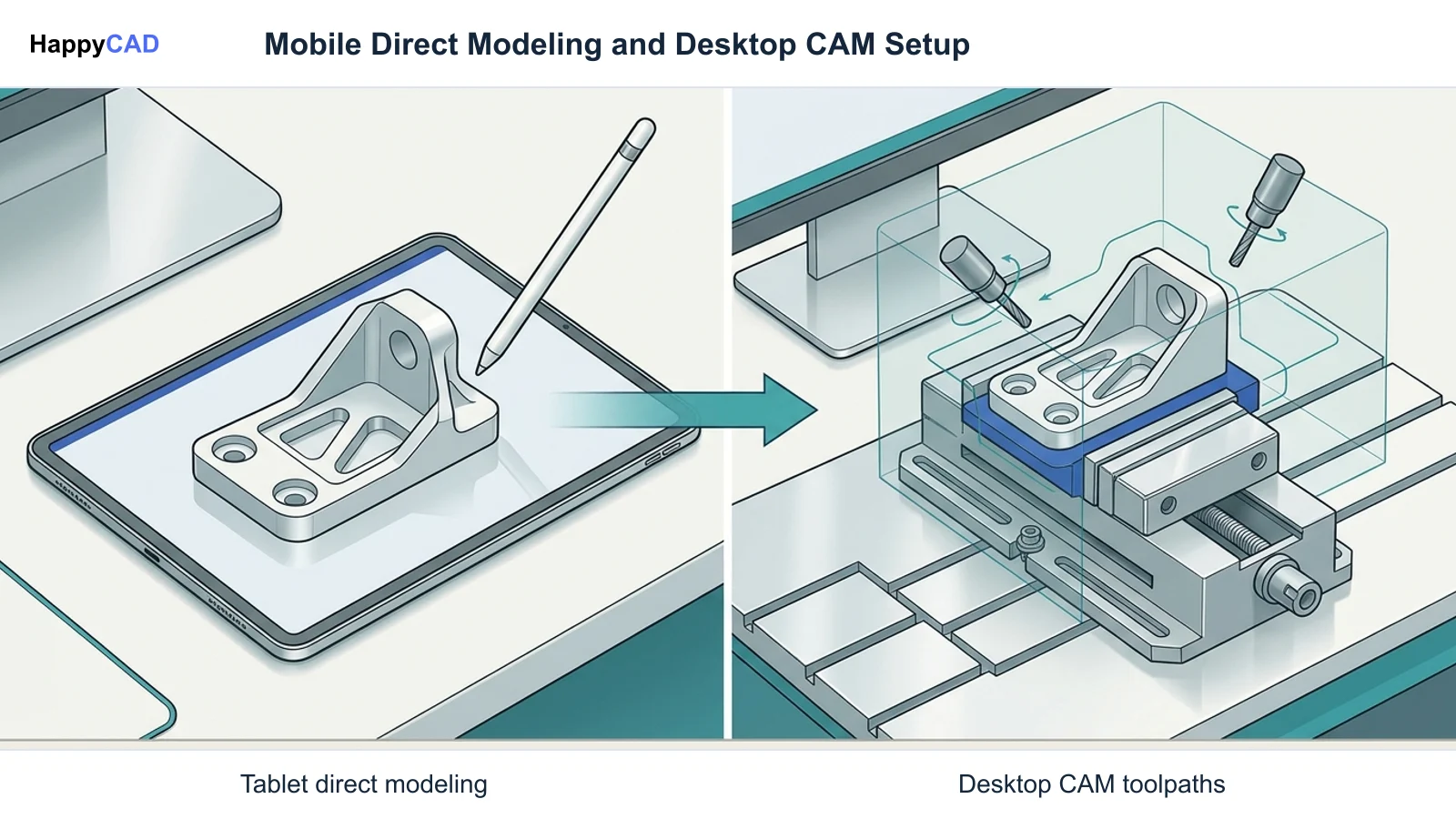
For machinists, toolmakers, and maintenance technicians operating directly inside the shop environment, Shapr3D provides an agile spatial canvas. When an operator needs to measure a raw billet, model custom soft jaws, or adjust a clamping bracket, an iPad or Windows tablet equipped with a stylus allows geometry creation in minutes.
Direct push-pull modeling lets users modify solid faces without debugging complex sketch dependencies. These solid bodies can then be exported as standard DXF profiles for waterjet slicing or transferred downstream for full CAM processing.[2][3][4][8]
End-to-End Production Machining and Assemblies
For operations where a single programmer carries a project from conceptual mechanical architecture through final G-code post-processing, Autodesk Fusion provides a comprehensive environment.
Because CAD edits instantly trigger toolpath regeneration flags in Fusion's CAM module, engineering change orders (ECOs) propagate through manufacturing setups without requiring manual file re-imports or neutral-format translations.[4][5][8]
Making and Verifying the Decision
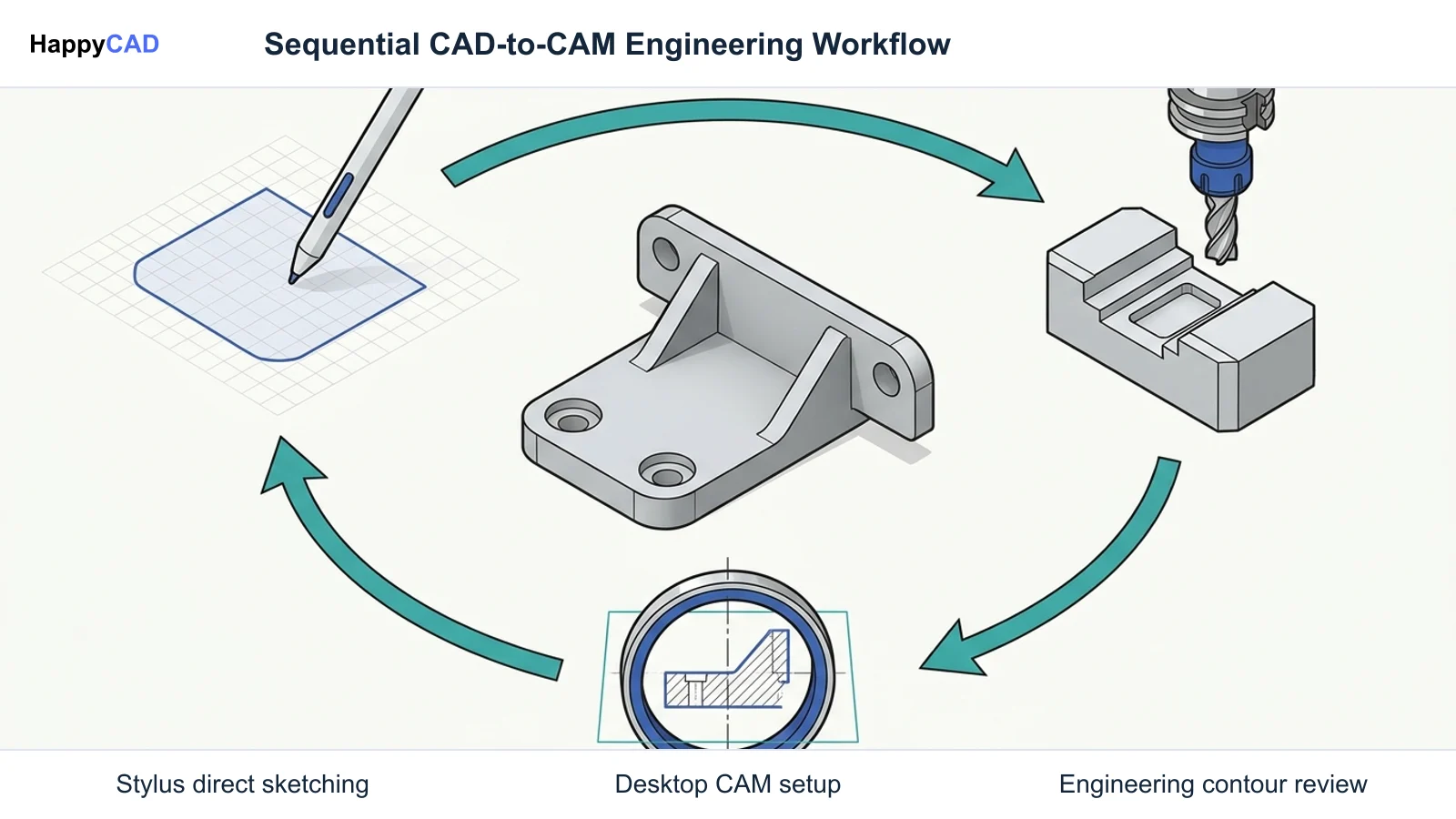
Rather than treating these platforms as mutually exclusive alternatives, many production facilities pair them within a single pipeline. Machinists capture physical dimensions and mock up workholding in Shapr3D at the machine enclosure, exporting native Parasolid text (.x_t) or binary (.x_b) files directly into Autodesk Fusion. Utilizing Parasolid files bypasses neutral STEP tessellation issues and preserves clean B-rep topological definitions.
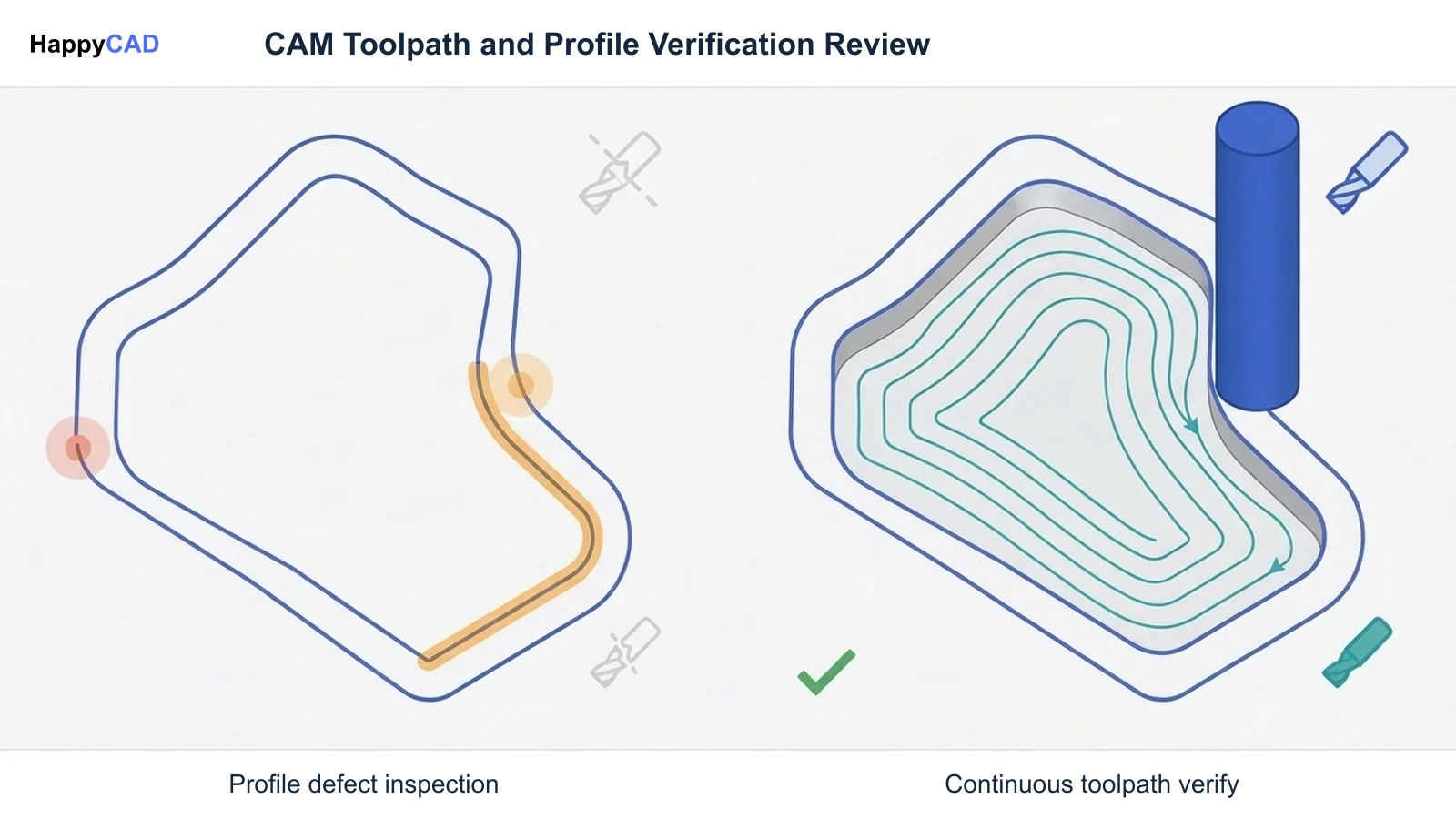
Regardless of the CAD or CAM software chosen, human engineering verification remains vital before initiating spindle rotation. Programmers must review 2D drawings for correct GD&T callouts, inspect 2D DXF contours for duplicate entities or open boundaries, and verify post-processed G-code syntax against machine kinematic limits. Digital tools assist design and toolpath creation, but manufacturing personnel retain ultimate responsibility for safe, accurate production execution.[2][4][5][6][8]
Frequently Asked Questions
Can Shapr3D generate G-code directly for CNC machines?
No. Shapr3D contains no native CAM toolpath engine. Solid geometry designed in Shapr3D must be exported to an external CAM platform, such as Autodesk Fusion, Mastercam, or Siemens NX, to calculate toolpaths and post-process G-code.[3][5]
What is the cleanest file format to transfer geometry from Shapr3D to Fusion 360?
Because Shapr3D is built on the Siemens Parasolid geometric modeling kernel, exporting models via Parasolid Text (.x_t) or Parasolid Binary (.x_b) offers the cleanest B-rep transfer, bypassing common neutral-format translation and tessellation issues. STEP AP214 or AP242 files also serve as reliable alternatives.[5][6][8]
Does Shapr3D support parametric history tracking?
Yes. Shapr3D incorporates an adaptive modeling approach that allows users to switch between direct push-pull manipulation and history-based parametric tracking, though its history tracking is lighter in scope compared to traditional desktop parametric suites like Fusion 360.[2]
Can Fusion 360 be operated effectively on a mobile tablet?
Autodesk Fusion is designed primarily for desktop operating systems utilizing mouse and keyboard navigation. While it can run on certain Windows convertible hardware, it lacks the specialized touch-and-stylus gesture interaction engine found in mobile-native CAD applications like Shapr3D.[2][3]
References
Sources
Documentation and technical references for this article.
Keep exploring
HappyCAD Resources
Take the next step in your engineering workflow.
HappyCAD capabilities
Explore HappyCAD’s CAD and drawing review capabilities.
Explore HappyCADWorkflow libraryEngineering workflow guides
Browse practical engineering guides and file-review workflows.
Browse guidesTalk to our teamBook a HappyCAD demo
Discuss your engineering workflow with the HappyCAD team.
Book a demoBring a Second Review to Your Workflow
Try HappyCAD to streamline your engineering drawing reviews, DXF contour validations, and G-code verifications before releasing parts to production.
Try HappyCAD